

Log completed study sessions
Use Log Time on your dashboard to record the date, duration, start and end times, course and confidence rating. Add work completed away from a timer, such as textbook practice or library study.
Study hours, courses and weekly goals
See where your study hours go. Log completed sessions by course, review your weekly totals and work toward a study goal that fits your schedule.
AcademyNC brings your study log and weekly progress into your dashboard. Record time manually or use the signed-in Pomodoro flow to save a session.
Free account to get started. Sign in to save and review your study records.
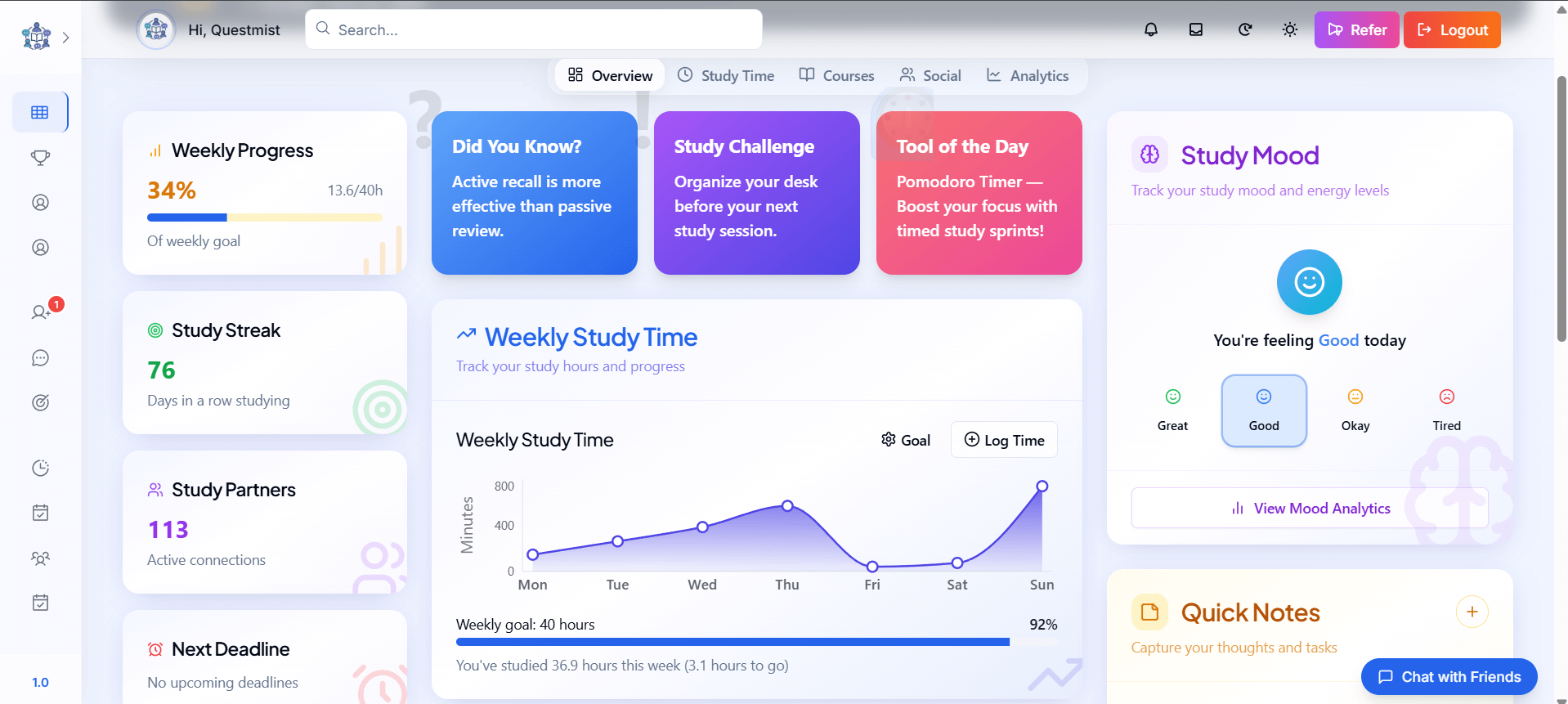
A study hours tracker records the time you spend learning across sessions. Adding the course gives the number context: you can see whether your week went into calculus practice, biology review or another subject.
Use that record alongside your deadlines and practice results. A course with fewer hours may need attention, or it may already be on track. Your study log helps you ask the question; the work you can complete helps you answer it.
Use Log Time on your dashboard to record the date, duration, start and end times, course and confidence rating. Add work completed away from a timer, such as textbook practice or library study.
Associate a session with a course so its time appears in the course breakdown. This makes it easier to compare where you spent your time across the subjects you are studying.
See daily logged time, your total for the week and a comparison with the previous week. Use the graph and course breakdown to spot days or subjects you want to revisit.
Choose a weekly target in hours and review your progress toward it. Adjust the target around your classes, deadlines and available time instead of chasing a fixed daily number.
Create an account and add the courses you study. Before a session, choose one task you can describe clearly, such as reviewing cell division or practising integration problems.
After the session, open your dashboard and select Log Time. Enter the date and study duration, check the start and end times, select the course and give a confidence rating.
Review your daily totals, course breakdown and weekly goal progress. If you also used a timer that saved the session, check your records before adding it manually.
Compare your logged time with upcoming work and what you can recall or solve. Decide which course needs the next session and put that task into your plan.
For timed work blocks, explore the Pomodoro study timer. Use the dashboard log when you need to record completed work without running a timer.
Record the duration against a course. Keep a short result in your study notes so you can compare time spent with what you understood or finished.
| Course | Study time | Task and result noted separately |
|---|---|---|
| Calculus | 25 minutes | Practised integration; marked two questions to revisit. |
| Biology | 40 minutes | Recalled the cell cycle, then checked missing steps. |
| Calculus | 25 minutes | Retried the two questions without the worked solution. |
| Total | 90 minutes | 1.5 study hours, excluding breaks. |
To convert minutes to study hours, divide by 60. In this example, calculus accounts for 50 minutes and biology for 40. Those totals describe how time was allocated; they do not measure mastery.
Useful for textbook work, classes you study for offline or a session where you forgot to start the timer. Enter the date and duration yourself, and check the course and times before saving.
Useful when you want a work block with a defined end. Select the course in the Pomodoro flow and check that the session saves to your records. Avoid manually logging the same session again.
Want to try a timer first? Open the guest Pomodoro timer. Guest use and saved dashboard history are separate experiences.
Use Study Planning to organize upcoming work and Progress Tracking for the broader picture. For a shared routine, explore Shared Pomodoro sessions.
Record each session with a date, subject and the minutes you actually studied. In AcademyNC, sign in, open the dashboard and use Log Time to add a completed session. Review your weekly totals and course breakdown to decide where to spend your next study block.
Yes. Add your courses and select the relevant course when logging a session. Course-linked entries contribute to the course study-time breakdown. Use consistent course names so you can compare your subjects meaningfully.
Yes. Use Log Time on the dashboard to record the session date, minutes, start and end times, course and confidence rating. Enter the time you actually spent studying and check that the same session has not already been recorded by a timer.
Create a free AcademyNC account to start logging study sessions and reviewing weekly progress in the signed-in dashboard. You need to sign in to save records to your account.
You can try the guest Pomodoro timer without creating an account. The dashboard study log, course breakdown and saved account history require sign-in. A guest timer session should not be assumed to appear in a signed-in study log.
The signed-in Pomodoro flow supports saving study time, including a course association when selected. Review the saved session in your dashboard before adding a manual entry for the same work. Logging depends on the session completing its save flow successfully.
The Study Time widget shows daily logged time for the week, the weekly total, progress toward a weekly hour goal and a comparison with the previous week. Course-linked study time also appears in the course breakdown. These are records of logged time, not an automatic assessment of concentration or mastery.
For a useful study-hours log, count the time you spent on the learning task and leave breaks out. Apply the same approach across sessions. For example, two 25-minute study blocks separated by a five-minute break represent 50 minutes of study time.
Divide the minutes by 60. A 90-minute study session is 1.5 hours, while two 25-minute sessions total 50 minutes, or about 0.83 hours. Add the minutes for the period first, then convert the total to avoid rounding each short session.
Choose a schedule around your course workload, deadlines and available time. Start with a weekly goal you can realistically meet, then divide it into sessions. Review both your logged time and your practice results before deciding to add more hours.
A study timer measures or counts down a session while you work. A study tracker keeps records you can review across sessions and subjects. AcademyNC combines dashboard logging with connected study tools, so you can review recorded time as part of your weekly routine.
A time log can help you notice gaps and plan your workload, but hours alone do not show what you learned. Pair your time records with practice questions, recall checks or completed work. The tracker does not guarantee grade improvement.
For information about account data, read the privacy policy and terms.
Choose a course, complete one task and record the time. Build a study log you can use when planning the rest of your week.